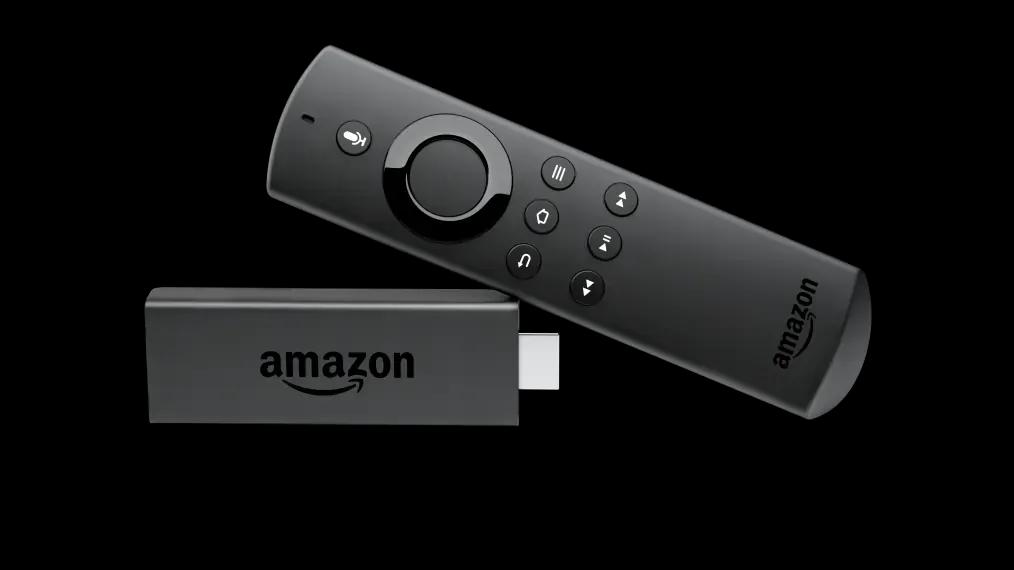
Nothing is more frustrating than settling onto the couch for an NFL Sunday matchup, a UFC pay-per-view bout, or a live Premier League derby, only to be greeted by a spinning wheel of death on your Amazon Fire TV Stick.
Because the Amazon Firestick is the most widely owned streaming device across the United States, fixing iptv buffering firestick issues is the most common technical request our engineering team receives.
Diagnosing IPTV buffering Firestick problems requires looking closely at local network congestion, Fire TV memory allocation, and ISP throttling. a bottleneck inside your local streaming environment: Firestick RAM saturation, aggressive ISP bandwidth throttling, incorrect media player buffer sizes, or crowded 2.4GHz Wi-Fi frequencies.
Follow these 7 verified engineering steps to permanently resolve buffering issues on your Amazon streaming devices.
1. Fix IPTV Buffering Firestick Issues by Increasing Buffer Size
By default, popular IPTV players like TiviMate and IPTV Smarters Pro allocate a very small memory buffer (often just 500 milliseconds to 1 second of cached video). If a micro-second jitter occurs on your home network, the video stream immediately freezes because there are no reserve video frames stored in memory.
IPTV Buffering Firestick Player Settings
If you use TiviMate IPTV Player: 1. Open TiviMate and go to Settings > Playback. 2. Select Buffer size. 3. Change the default setting from None or Normal to Large or Very Large.
This allows your Firestick to cache 5 to 10 seconds of uncompressed video ahead of playback. When minor network latency spikes occur, the buffer absorbs the delay seamlessly, preventing annoying iptv buffering firestick disruptions during live games.
2. Switch Media Player Hardware and Software Decoders
Video decoding on the Firestick relies on either hardware chips (HW) or CPU software calculations (SW). Occasionally, high-bitrate 60FPS or 8K video streams encounter codec conflicts with the default hardware decoder, resulting in audio drifting out of sync or intermittent video stuttering.
In your player playback settings: - Change the Video Decoder from Hardware (HW) to Hardware+ (HW+) or Software (SW). - If audio continues playing while the video freezes on sports channels, toggling to Software decoding forces the Firestick quad-core processor to handle rendering directly, restoring fluid frame rates.
3. Clear App Cache to Fix IPTV Buffering Firestick Problems
The Amazon Firestick 4K and Fire TV Stick Lite are compact dongles equipped with limited memory (typically 1.5GB to 2GB of RAM and 8GB of internal flash storage). When applications like Netflix, Prime Video, YouTube, and Downloader run in the background, they consume valuable system memory and fill up temporary cache directories.
To reclaim system memory: 1. From the Firestick home screen, navigate to Settings > Applications > Manage Installed Applications. 2. Select your IPTV application (e.g., TiviMate or IPTV Smarters Pro). 3. Click Clear Cache (never click Clear Data, as this will erase your login credentials). 4. Click Force Stop to restart the application fresh. 5. Repeat this process for any other heavy streaming apps installed on the device.
We recommend maintaining at least 1.5GB of free internal storage on your Firestick to ensure smooth operating system paging.
4. Eliminate 2.4GHz Wi-Fi Congestion with 5GHz or Ethernet
Most home routers broadcast two separate wireless frequency bands: 2.4GHz and 5GHz. The 2.4GHz band travels long distances through walls but suffers from severe signal interference caused by microwave ovens, Bluetooth devices, and neighboring apartment networks. Its maximum real-world throughput often drops below 15 Mbps during peak evening hours.
To prevent video stream freezes caused by wireless dropouts: - Connect your Firestick exclusively to your router's 5GHz Wi-Fi band, which provides vastly higher bandwidth and lower latency for 4K streaming. - For ultimate bulletproof stability, invest in a simple $12 micro-USB to Ethernet adapter. Hardwiring an Ethernet cable directly from your router to the Firestick bypasses wireless interference entirely and delivers zero packet loss.
Check out our complete Amazon Firestick setup guide for recommended hardware accessories and optimal network layouts.
5. Bypass Peak Evening ISP Bandwidth Throttling
During peak viewing hours (between 7:00 PM and 11:00 PM), major American internet service providers like Comcast, AT&T, Cox, and Spectrum detect continuous high-bitrate video traffic and systematically throttle your bandwidth to conserve regional network capacity.
To test if your ISP is throttling your connection: 1. Run a speed test on your Firestick using the Silk Browser. 2. If your speeds plummet from 200 Mbps down to 10 Mbps exclusively during live sports events, your ISP is shaping your traffic. 3. Configure your router or streaming stick to use third-party DNS servers instead of your ISP default servers: - Cloudflare DNS: `1.1.1.1` and `1.0.0.1` - Google DNS: `8.8.8.8` and `8.8.4.4` 4. If throttling persists, routing your connection through a high-speed VPN protocol (such as WireGuard) will encrypt your data packets, preventing your ISP from identifying or restricting your IPTV video streams.
6. Verify Server Health and Anti-Freeze Redundancy
If you have executed the steps above and single channels still lag, the bottleneck may lie with an oversold or unstable IPTV server. Many discount IPTV providers rely on low-cost virtual private servers with inadequate uplink pipes.
At IPTVSubs8K, all streaming feeds are anchored by Anti-Freeze 9.2 clustering technology, featuring automated multi-datacenter failover and intelligent US edge routing. If a primary feed experiences latency, our server network automatically shuffles client connections to an active hot standby with zero downtime.
You can verify stream reliability for yourself by requesting an instant 24-hour IPTV free trial to benchmark our servers during a live event.
7. Update Fire OS Firmware and Restart Network Gear
Electronic equipment accumulates cache errors over extended uptime cycles. Once every week, perform a complete power cycle of your home entertainment hardware: 1. Unplug the power cable from your internet modem and Wi-Fi router. 2. Unplug your Amazon Firestick from the TV HDMI port and power outlet. 3. Wait 60 seconds, then plug the modem and router back in. 4. Once the internet connection is fully restored, power on your Firestick. 5. Go to Settings > My Fire TV > About > Check for System Update and install any pending Fire OS firmware updates.
Take Control of Your Streaming Experience
By applying these 7 proven optimizations, you can transform your Amazon Fire TV Stick from a sluggish, stuttering dongle into a high-performance 60FPS streaming powerhouse.
Once your hardware is finely tuned, browse our competitive pricing plans and subscriptions to enjoy over 40,000 live channels and 200,000 VOD titles with rock-solid anti-freeze stability.