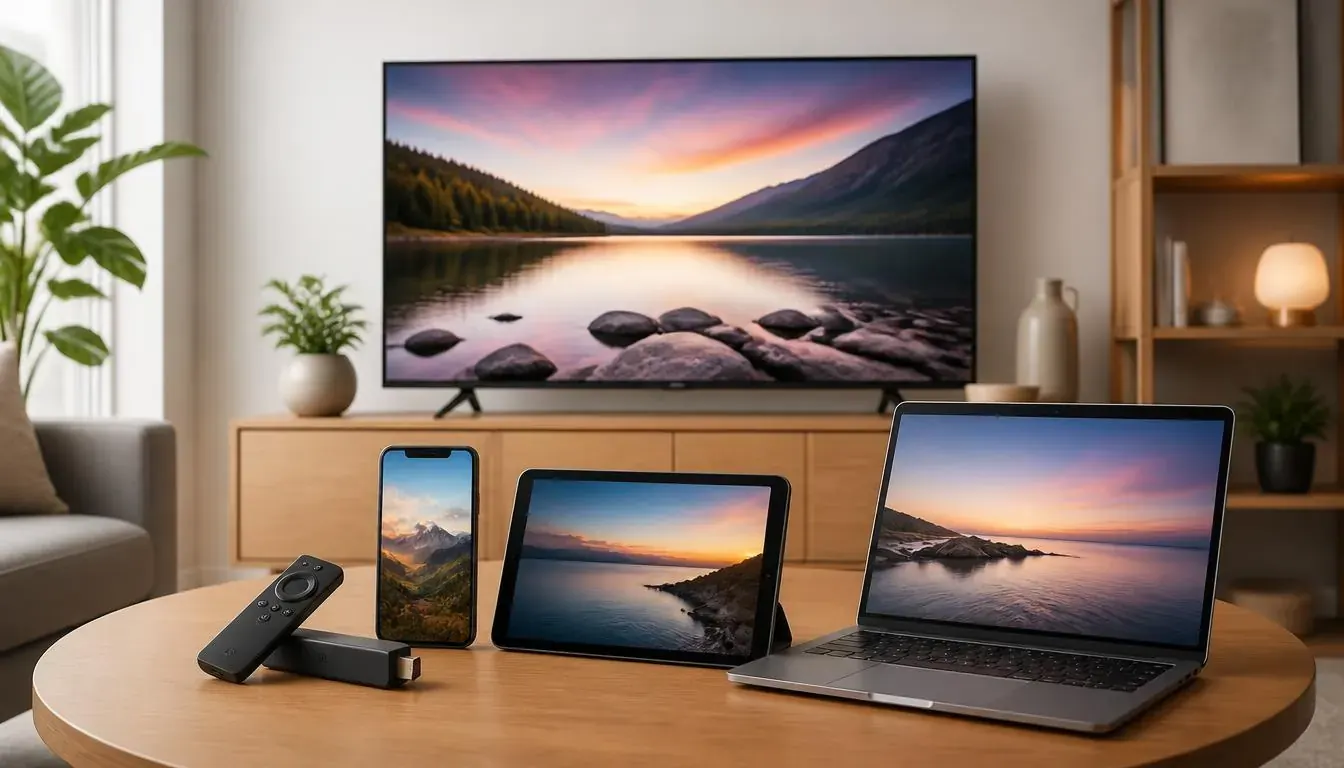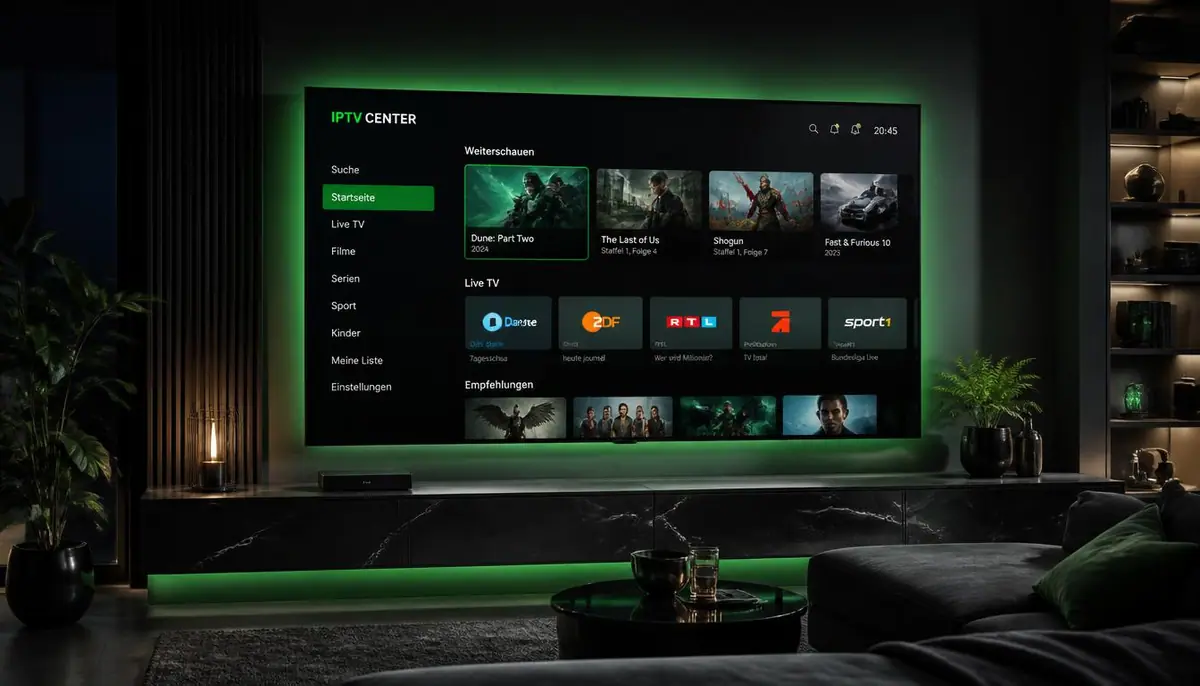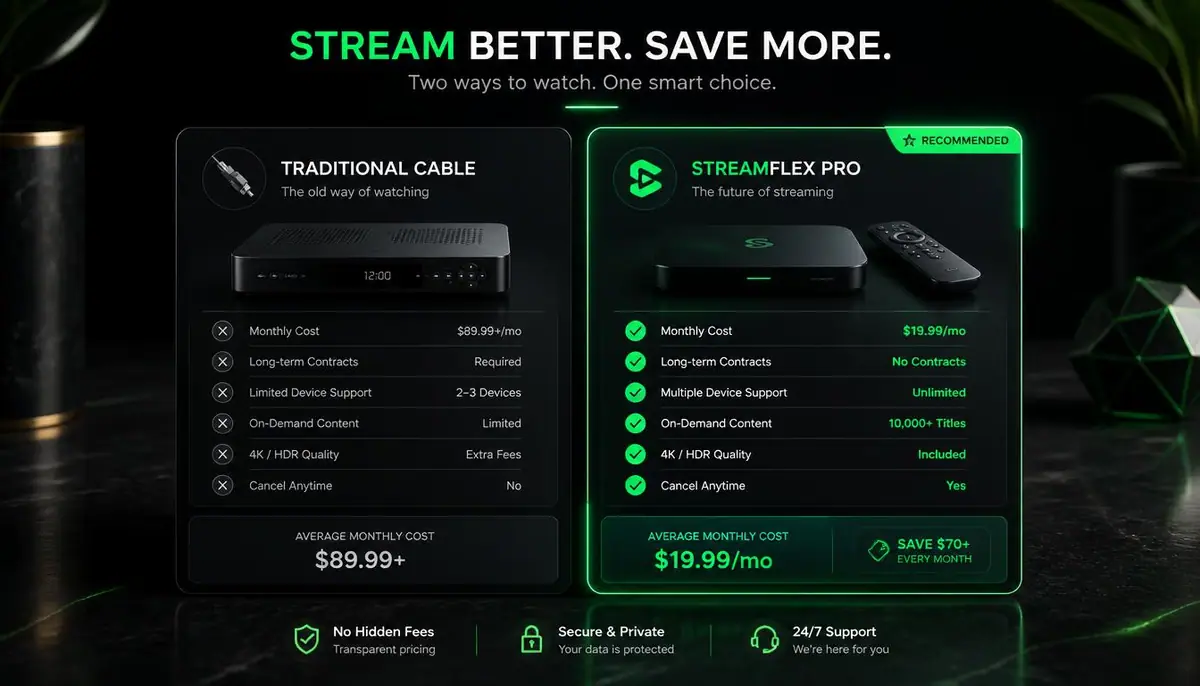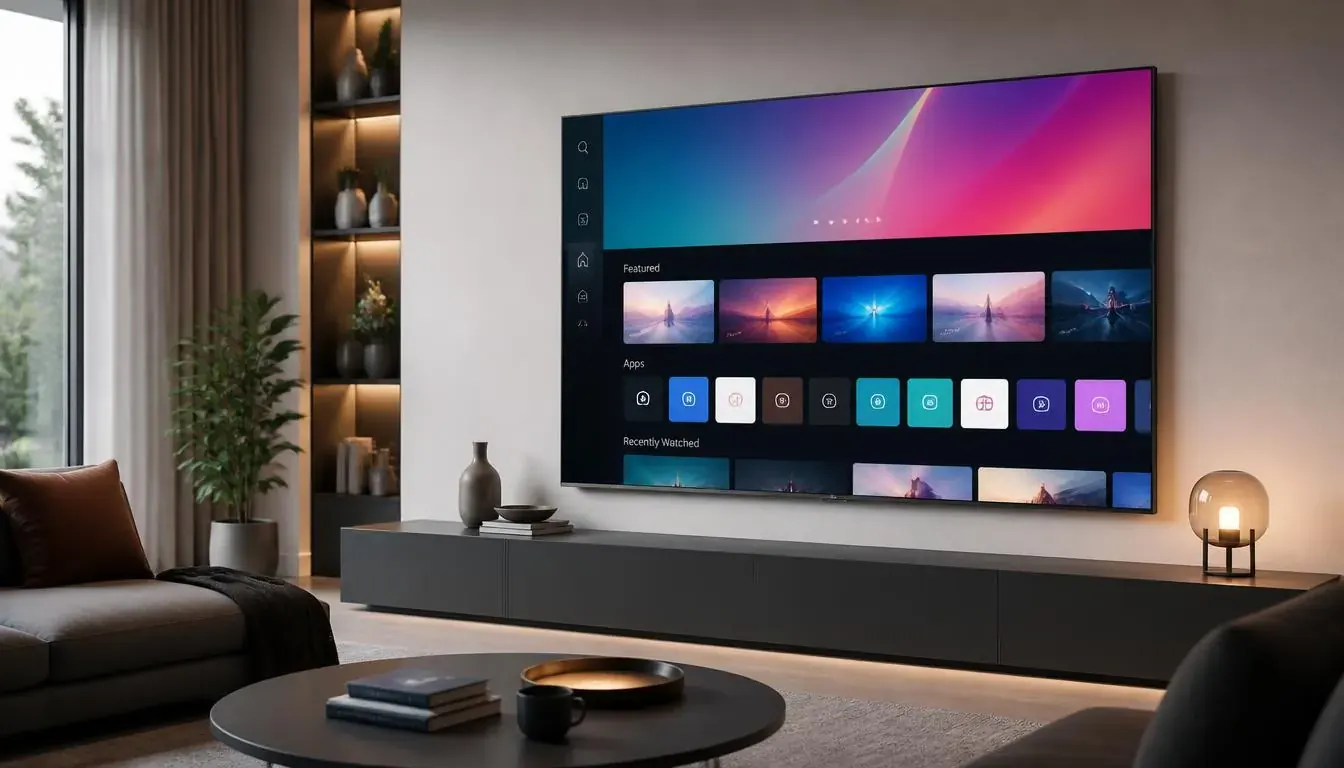
Modern Smart TVs from industry giants like Samsung and LG dominate living rooms across the United States. With breathtaking 4K and 8K OLED panels, ultra-thin bezels, and seamless wall-mounting designs, homeowners increasingly want a clean, minimalist home theater setup.
The last thing anyone wants dangling beneath a pristine $2,000 wall-mounted television is a tangle of HDMI cables, external power bricks, and an extra remote control just to watch television.
Finding the best iptv for smart tv solutions means leveraging your television's built-in operating system—whether that is Samsung Tizen OS or LG webOS—to stream over 40,000 live channels natively through your TV remote control.
In this guide, we break down how IPTV works on Samsung and LG Smart TVs, compare the highest-performing native media players, and provide expert optimization tips to eliminate buffering for good.
1. Why Native Best IPTV for Smart TV Streaming Wins
Streaming IPTV directly through your Smart TV operating system delivers distinct lifestyle advantages over external dongles:
- Single Remote Control Simplicity: You control channel switching, volume, audio tracks, and the Electronic Program Guide using your television's native remote (such as the Samsung SolarCell Remote or LG Magic Remote). There is no juggling between different controllers.
- Zero Cable Clutter: No HDMI dongles hanging from the back panel, no secondary power adapters occupying wall outlets, and no overheating streaming sticks trapped behind flush-mounted displays.
- Direct Display Processing: Built-in TV apps communicate directly with your television's native image processing engine (such as Samsung Neo Quantum AI or LG Alpha 9 Gen 6 processor), ensuring optimal HDR10+, Dolby Vision, and motion smoothing on 60FPS live sports broadcasts.
2. Understanding Samsung Tizen OS vs LG webOS Architecture
Unlike Android TV or Firestick devices, Samsung and LG televisions do not run Google Android. Consequently, you cannot simply download and sideload standard `.apk` installation files from the internet.
Instead, Samsung televisions run Tizen OS (accessed through the Samsung Apps Store), while LG televisions run webOS (accessed through the LG Content Store). Both operating systems operate on secure, sandboxed Linux platforms that require applications to be officially approved or activated via unique hardware identifiers.
Fortunately, world-class streaming developers have built native, high-performance media players engineered specifically for Tizen and webOS.
3. Best Smart TV IPTV Players Compared
Best IPTV for Smart TV Native Player Comparison
When choosing a media player for your Samsung or LG television, two applications stand out above the rest:
IBO Player: Best IPTV for Smart TV Top Choice IBO Player has rapidly established itself as the premier IPTV player for modern Smart TVs in the United States. - User Interface: Sleek, modern, and dark-themed dashboard that mirrors high-end streaming apps like Apple TV and Netflix. - Performance: Hardware-accelerated 4K and 8K video rendering with instantaneous channel zapping (under 1 second). - Features: Rich Electronic Program Guide (EPG) timeline, multi-subtitle support, and automatic VOD series poster artwork. - Setup: Extremely simple web-based remote playlist uploading using your TV MAC Address and Device Key.
Smart IPTV (SIPTV) Smart IPTV is the veteran grandfather of Smart TV media players. - User Interface: Minimalist, retro-style numeric channel list that feels very similar to traditional digital cable converter boxes. - Strengths: Extremely lightweight footprint that runs smoothly even on older Samsung and LG models manufactured between 2017 and 2020. - Weaknesses: Lacks the visual polish of modern poster art and requires manual EPG source configuration in some regions.
For the vast majority of users with televisions purchased within the last five years, IBO Player provides a distinctly superior, premium streaming experience.
4. Step-by-Step Installation: How to Activate Your TV in 5 Minutes
Configuring IPTV on your Samsung or LG display requires no technical background:
- Install the Player: Open the Samsung Apps Store or LG Content Store on your TV screen. Search for IBO Player and install it.
- Retrieve Your Device Identifiers: Launch the application. A setup screen will appear displaying your unique TV MAC Address (e.g., `00:1A:79:XX:XX:XX`) and a 6-digit Device Key. Keep this screen visible.
- Upload Your Playlist: On your smartphone or laptop, visit the official player management portal (`iboplayer.com/manage`). Enter your MAC address and Device Key, then paste the M3U playlist link received in your IPTVSubs8K confirmation email.
- (Tip: You can also simply message your MAC address to our 24/7 WhatsApp support desk, and our concierge team will configure your channel lineup for you free of charge).
- Reload and Stream: Press the Reload button on your TV remote. In seconds, all 40,000+ live stations, sports groups, and on-demand movies will organize neatly onto your screen.
For complete, illustrated instructions, explore our dedicated Smart TV setup walkthrough.
5. Critical Network Tips for Buffer-Free Smart TV Streaming
Smart TVs pack gorgeous display panels, but television manufacturers routinely cut costs on internal networking hardware. Many Smart TVs contain weak internal Wi-Fi antennas located behind thick metal backplates, resulting in signal degradation during peak viewing hours.
To ensure your 4K and 8K streams never freeze during live sports: - Hardwire with an Ethernet Cable: Whenever physically possible, connect a standard Cat6 Ethernet cable from your internet router directly into your Smart TV's LAN port. A wired connection completely bypasses wireless packet collisions and delivers maximum throughput. - Prioritize 5GHz Wi-Fi: If wireless is your only option, ensure your TV is connected to your router's 5GHz frequency band rather than the congested 2.4GHz band. - Clear TV Memory Periodically: Just like computers, Smart TVs accumulate background RAM clutter. On Samsung TVs, hold down the Power button on your remote for 5 seconds until the screen power cycles. On LG TVs, navigate to Settings > General > Memory Optimizer to purge temporary cache.
6. Testing Your Smart TV with a Zero-Risk Free Trial
When evaluating the best IPTV for Smart TV options, verify how your Samsung or LG television performs with live 60FPS sports and international programming.
Claim our instant 24-hour IPTV free trial—no credit card required. We deliver your login details immediately so you can test channel switching, evaluate image clarity, and explore our massive catalog on your living room screen.
Once you experience the stunning clarity and effortless control of native Smart TV streaming, explore our flexible pricing plans and subscriptions to cut the cord for good. If you ever decide to add a secondary streaming box in a bedroom or office, our multi-device guides for Android TV and Firestick make expanding your home entertainment system seamless.